
View Holdings#
This guide explains how to effectively view and navigate your stock holdings in the TOL Login System.
Overview#
The View Holdings feature provides a comprehensive display of all your stock certificates and positions across your investment portfolio. You can filter, sort, and examine detailed information about each holding.
Navigating the Holdings Display#
The holdings display presents your investments in an organized table format with multiple viewing options.
Step 1: Access the Holdings View#
From the main Stock Holdings page, your complete portfolio is displayed in the central viewing area.
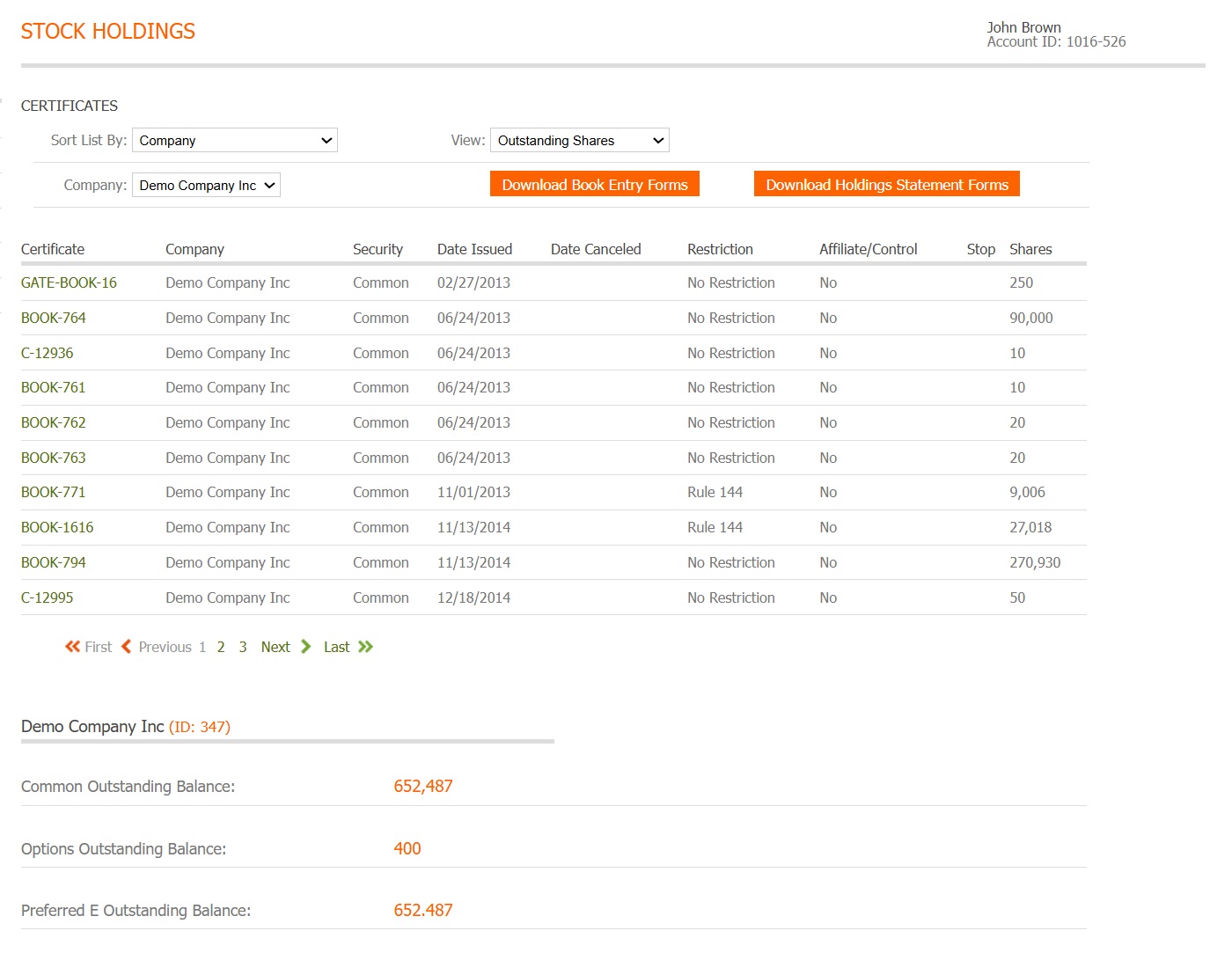
Fig. 14 Main holdings view displaying your complete portfolio#
See Also
The default view shows all holdings across all companies. Use the filtering options to focus on specific investments.
Using Company Filters#
Filter your holdings to view investments from specific companies in your portfolio.
Step 2: Select a Company#
Click the company dropdown menu to see a list of all companies where you hold investments.
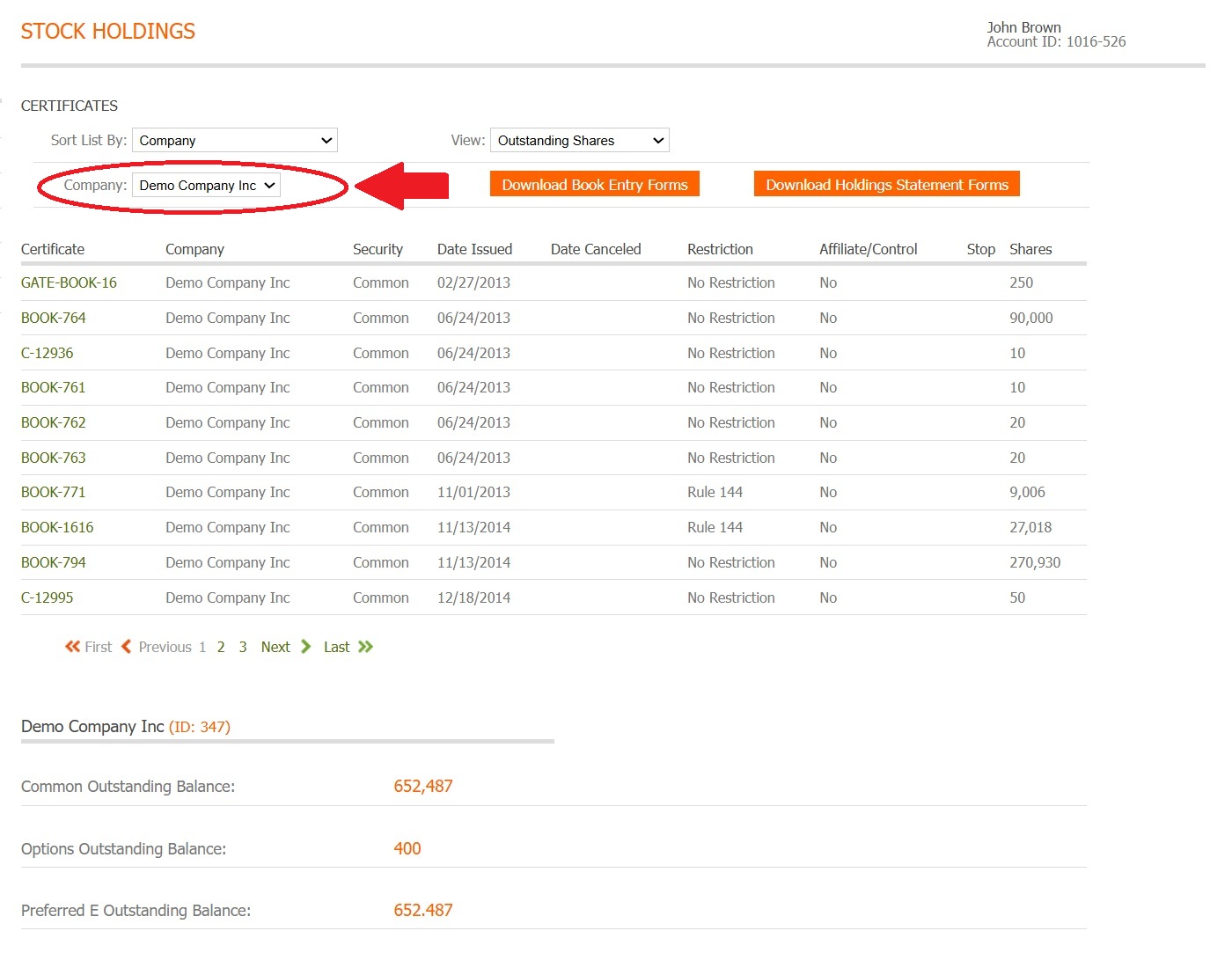
Fig. 15 Company selection dropdown for filtering holdings#
See Also
See Review Holdings Overview for more information.
Sorting Your Holdings#
Organize your holdings display to find information quickly.
Step 3: Access Sort Options#
Click the “Sort list by” dropdown to see available sorting criteria.
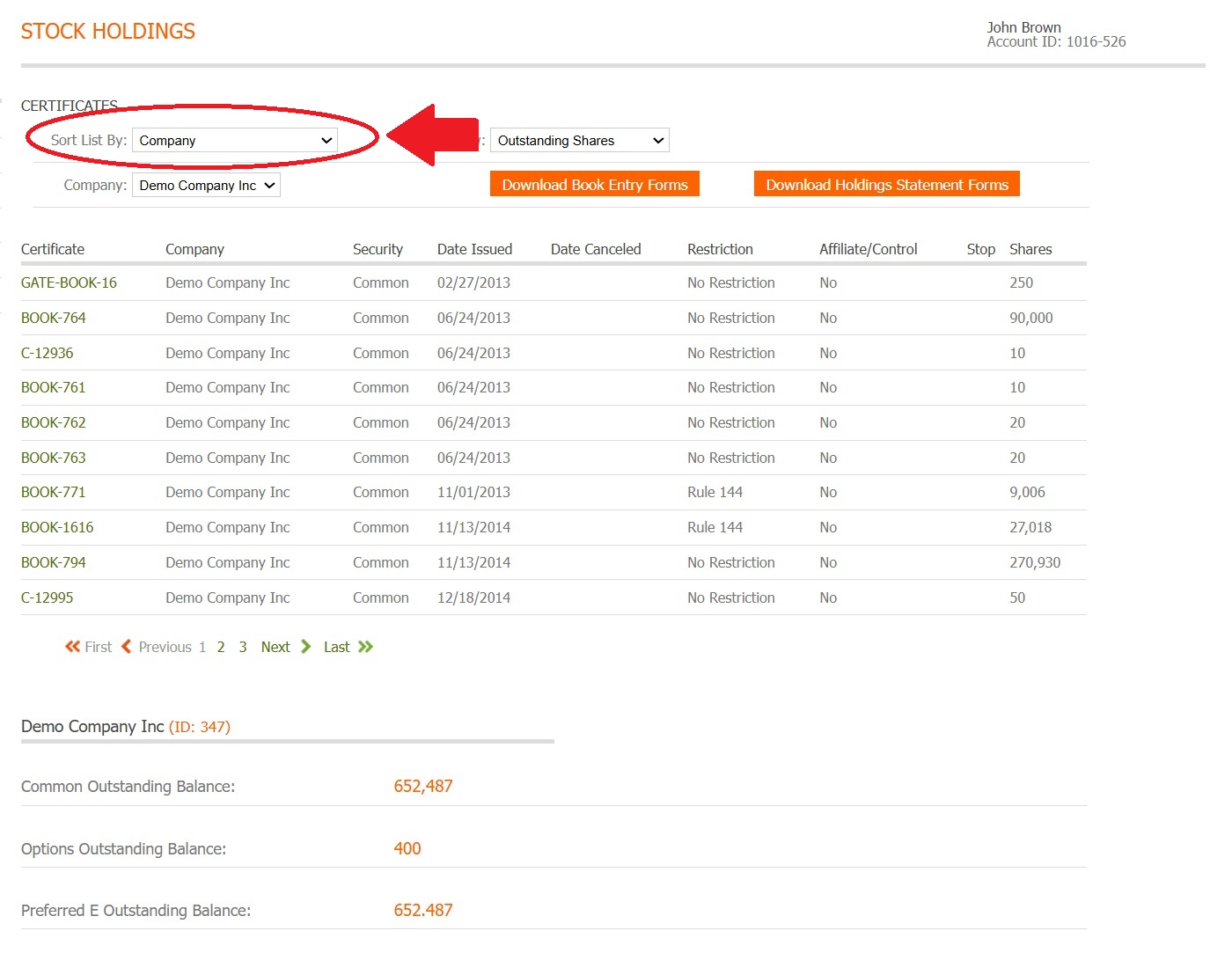
Fig. 16 Sort options for organizing your holdings display#
Available Sort Options#
You can organize your holdings display using the following criteria:
Company
Issue Date, Earliest First
Issue Date, Most Recent First
Restriction
Security
Shares, Less First
Shares, Most Shares First
Filtering by Security Type#
Further refine your view by displaying only specific types of securities.
Step 4: Select Security Type Filter#
Use the security types dropdown to filter holdings by security classification.
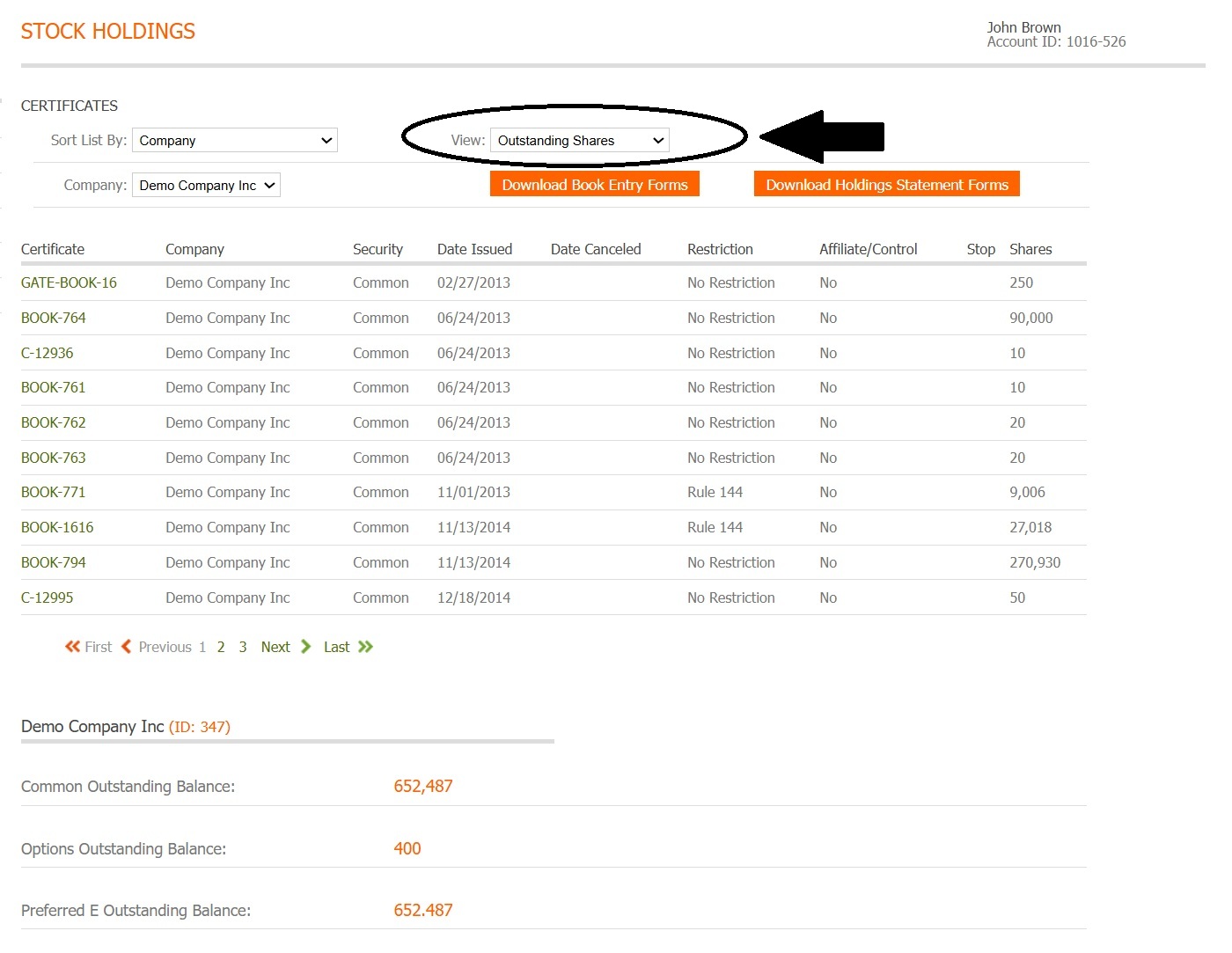
Fig. 17 Security type filter options#
See Also
Filtering by security type is particularly useful when you need to:
Review only common stock positions
Identify restricted securities
Locate option grants or warrants
Separate voting from non-voting shares