
Registration#
This section guides you through updating your account registration information in the TOL Login System.
Accessing Your Account Information#
To update your registration details, you’ll need to navigate to your account settings page.
Step 1: Navigate to My Accounts#
Access your account overview page where you can manage all your TOL account information.
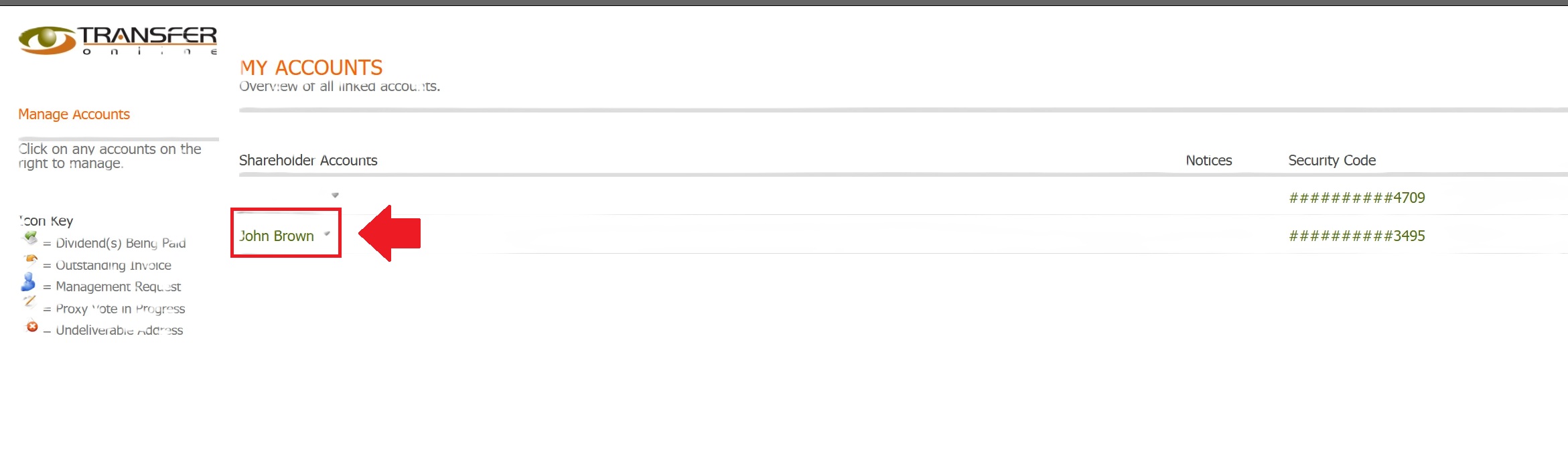
Fig. 1 My Accounts overview page#
Step 2: Access Registration Settings#
Click the registration update link to access your account details.
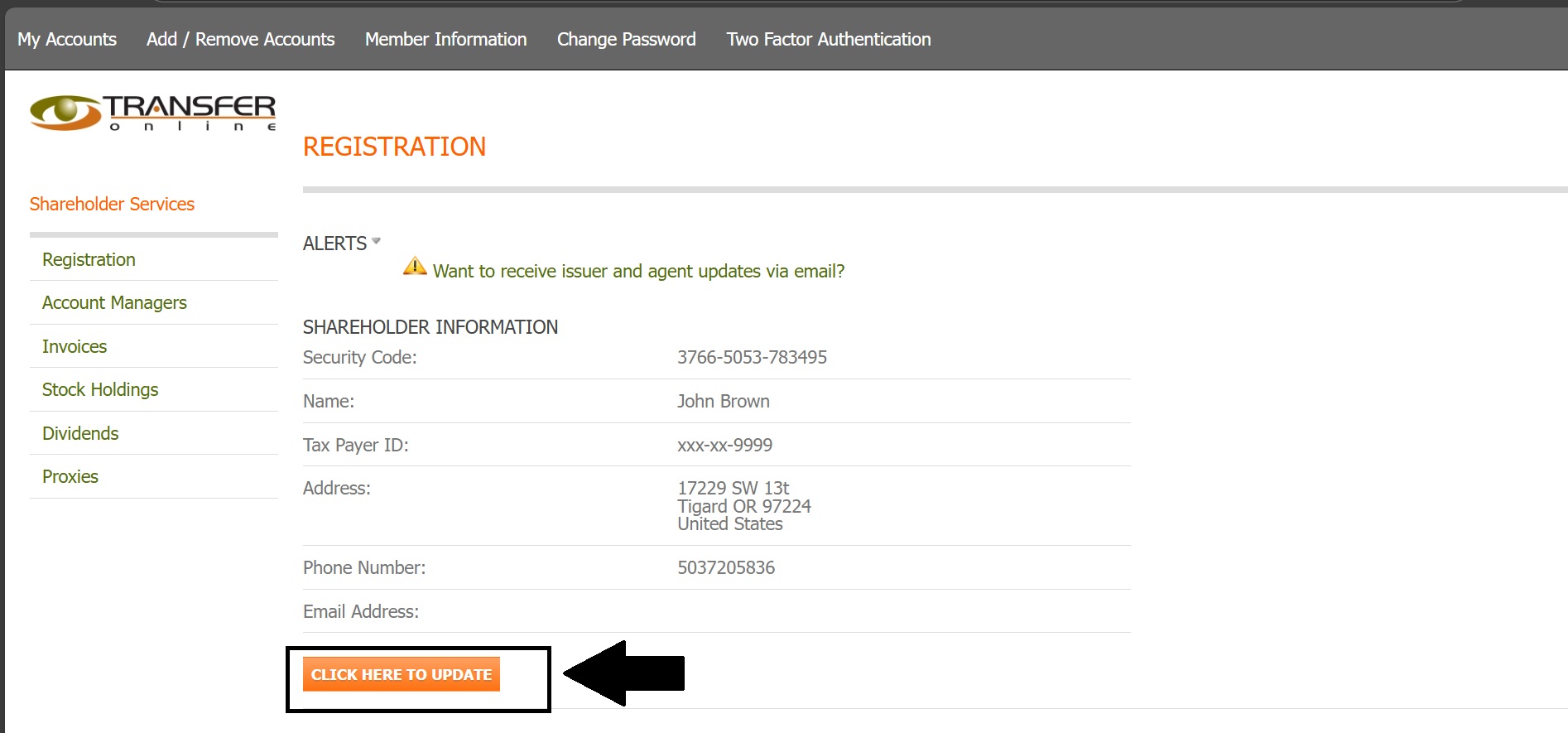
Fig. 2 Click here to update your registration information#
Action Complete
You have successfully navigated to the registration update page.
Updating Your Information#
The registration page is organized into distinct sections for easy navigation and updates.
Step 3: Review Basic Information Categories#
The registration form displays three main categories of information that you can update.
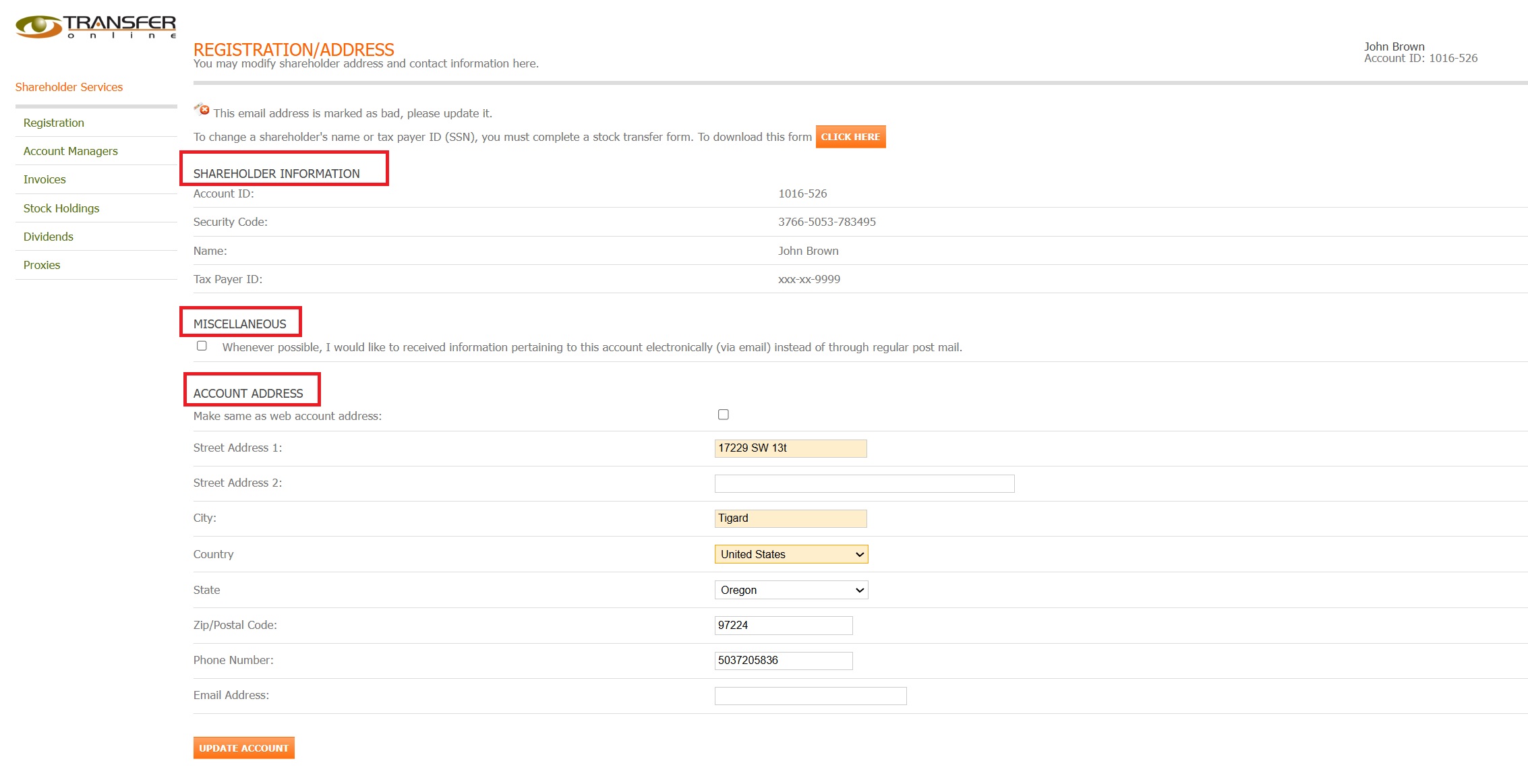
Fig. 3 Three main categories of registration information#
These categories are:
Shareholder Information - Contains your personal or entity details
Miscellaneous - Additional account settings and preferences (see Step 5)
Account Address - Your registered mailing address (see Step 4)
Note
Each category contains specific fields relevant to your account type and status.
Step 4: Update Address Information#
Complete or update your address details in the designated fields.
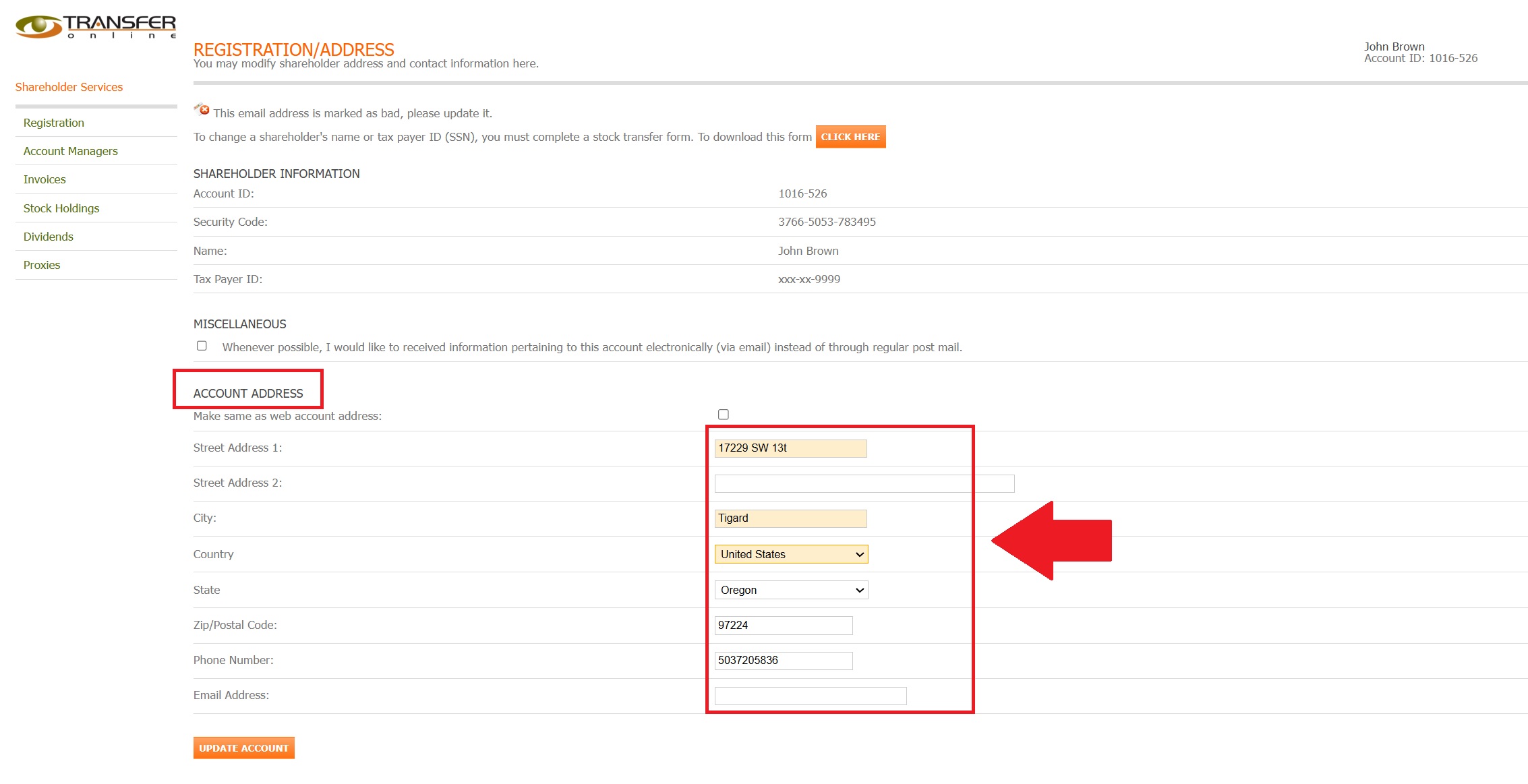
Fig. 4 Address information fields#
See Also
Ensure your address is current to receive important shareholder communications and documentation.
Step 5: Configure Additional Options#
Review and update miscellaneous settings including web access preferences.

Fig. 5 Additional registration options and preferences#
Saving Your Changes#
After making all necessary updates, you must save your changes to ensure they are applied to your account.
Step 6: Review All Information#
Before saving, review all sections to ensure your information is accurate and complete.
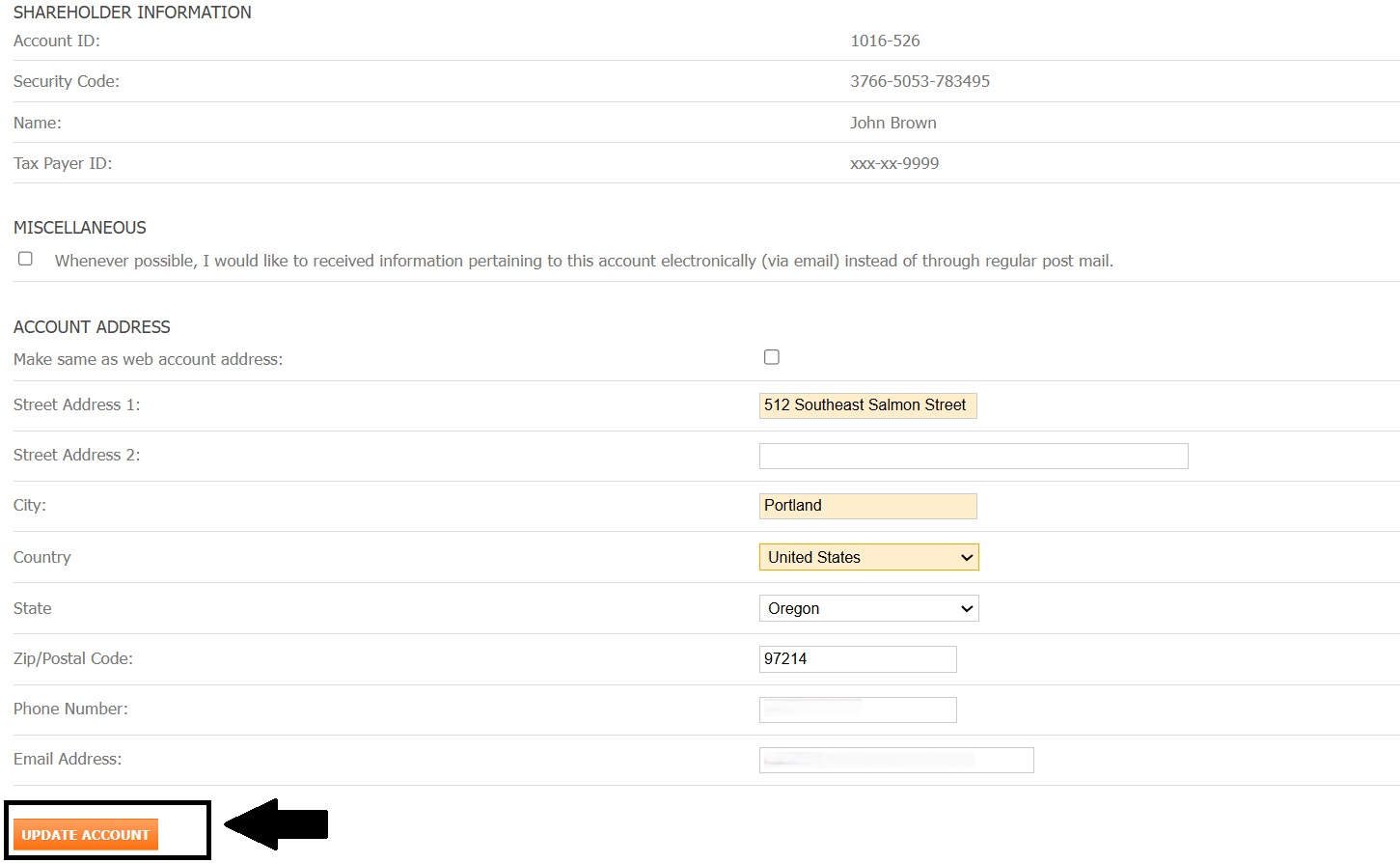
Fig. 6 Complete registration form ready for submission#
Important
Double-check all entered information for accuracy. Incorrect information may delay important communications or affect your account access.
Step 7: Save Your Updates#
Click the Update button to save all changes to your registration information.
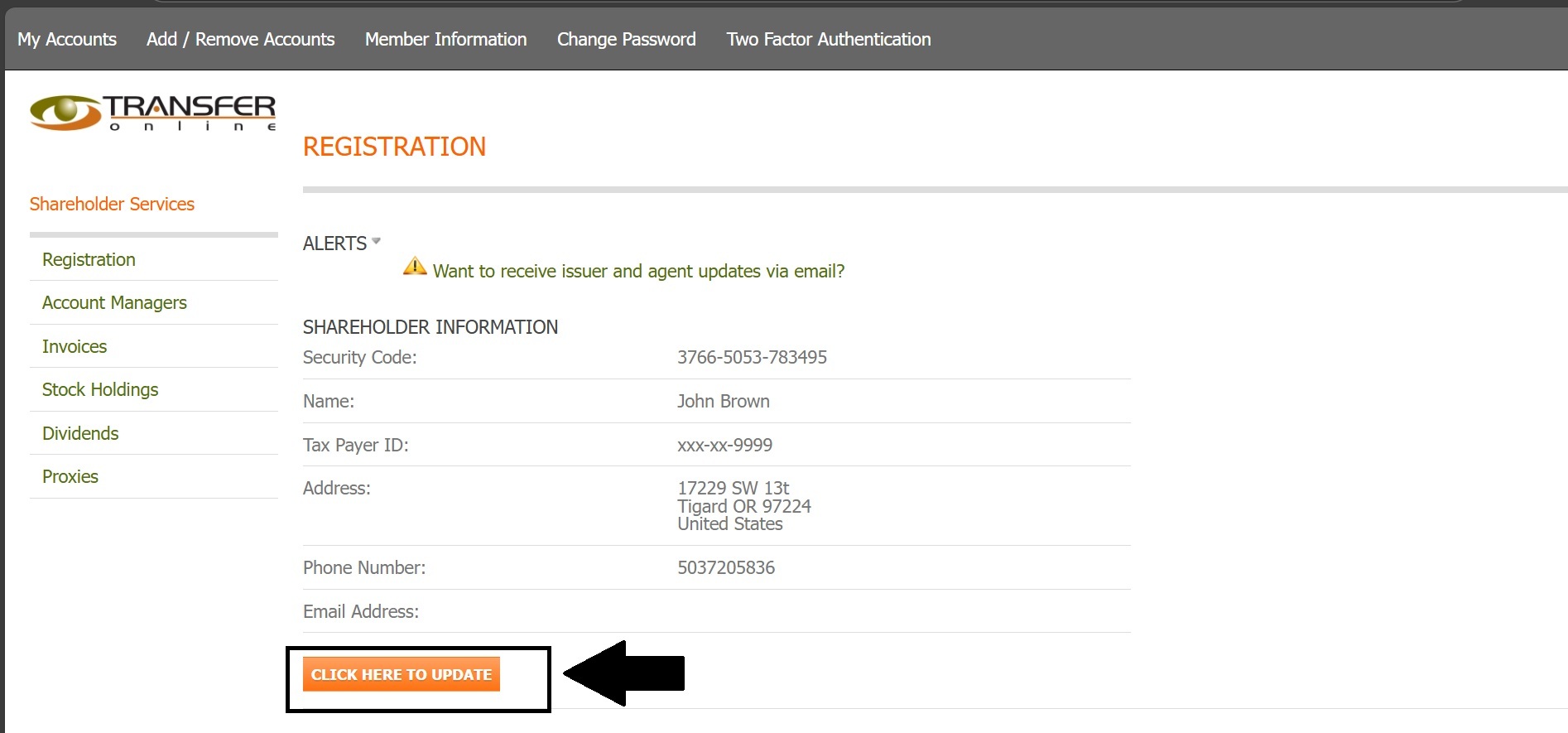
Fig. 7 Click the Update button to save your changes#
Action Complete
Your registration information has been successfully updated. You will receive a confirmation message once the changes have been processed.
Next Steps#
After updating your registration:
Return to the My Accounts page to verify your changes
Check your email for any confirmation messages
Contact support if you encounter any issues with your updates