
Invoices#
This section guides you through accessing and managing your invoices and payment history in the TOL Login System.
Overview#
The Invoices section allows you to view and manage your billing information, displaying all invoices in an organized table format for easy tracking of payments and outstanding balances.
Step 1: Locate Invoices in Navigation#
Find and click the Invoices option in the left navigation menu.
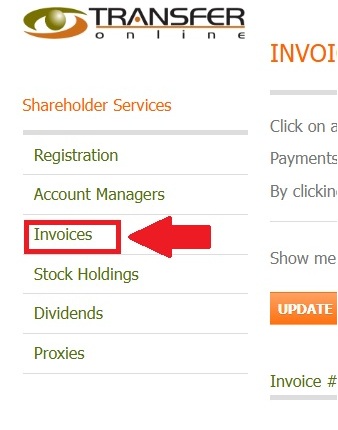
Fig. 26 Invoices location in the navigation menu#
Action Complete
You have successfully navigated to the Invoices section.
Invoices Dashboard#
The main Invoices page displays a comprehensive list of all your invoices and their current status.
Step 2: Understanding the Invoices Table#
The invoice information is organized in a detailed table format with essential billing information.
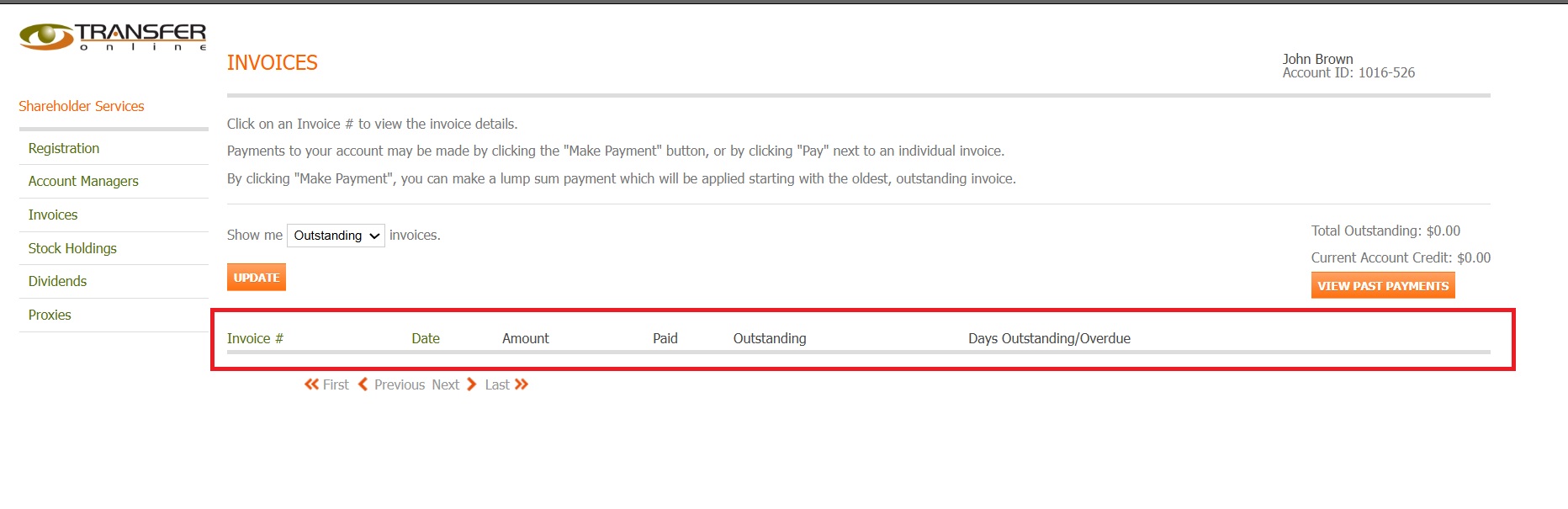
Fig. 27 Invoices table column structure#
Table Columns#
The invoices table includes the following key information:
Invoice # - Unique identifier for each invoice
Date - Invoice date
Amount - Total invoice amount
Paid - Amount already paid
Outstanding - Remaining balance to pay
Days Outstanding/Overdue - Number of days the invoice has been outstanding or overdue
Filtering Invoice Display#
The Invoices section provides filtering options to help you locate specific invoices quickly.
Step 3: Access Filter Options#
Click on the filter dropdown to view available filtering options.
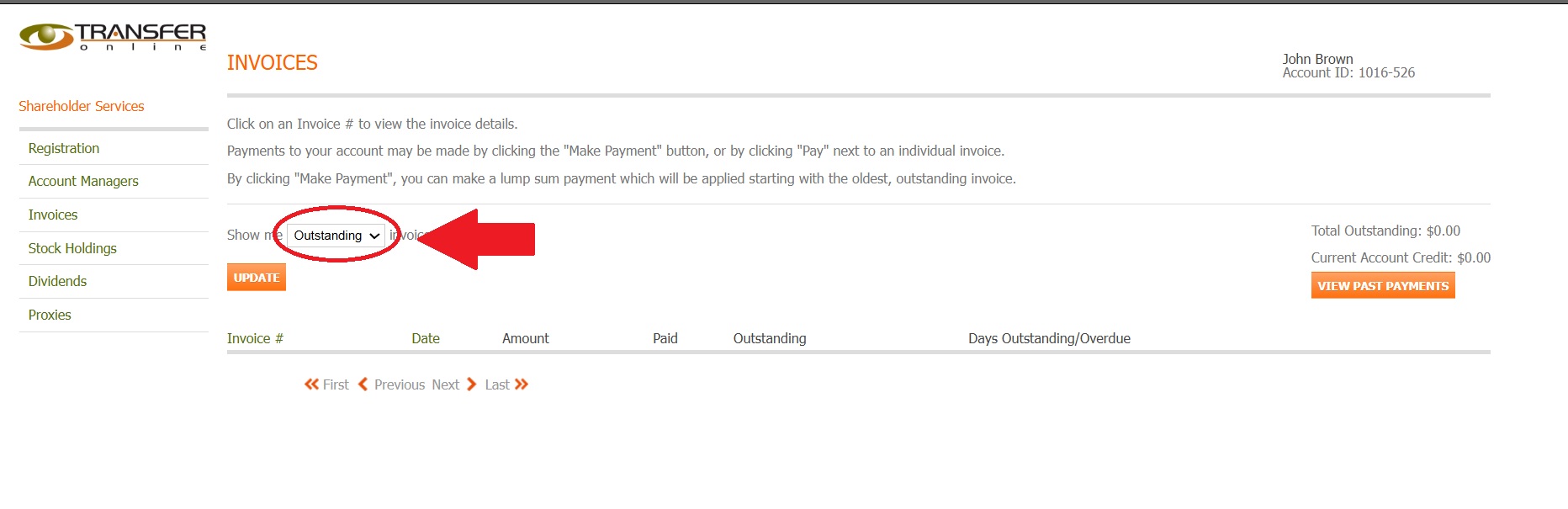
Fig. 28 Filter dropdown location#
Step 4: Select Filter Criteria#
Choose from various filter options to refine your invoice display.
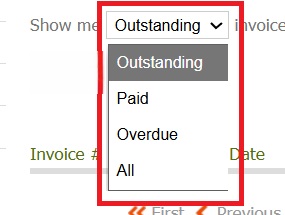
Fig. 29 Expanded filter options#
Available Filter Options#
You can refine your invoice display using the following filter options:
Outstanding
Paid
Overdue
All
Step 5: Apply Filters#
After selecting your filter criteria, click the UPDATE button to apply the filters.
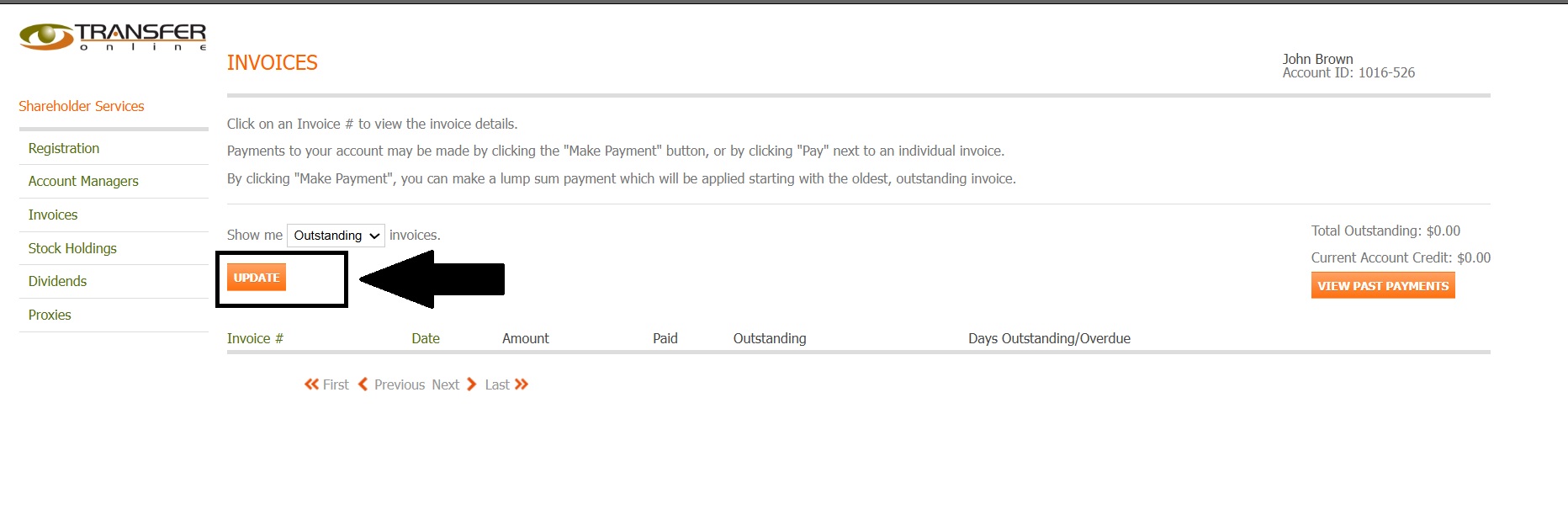
Fig. 30 UPDATE button location#
Note
The UPDATE button refreshes the invoice list based on your selected filters. You can modify filters and update again as needed.
Payment Information#
Note
The current system displays all invoices in one view. Use the filter dropdown to switch between Outstanding, Paid, Overdue, or All invoices. A separate payment history page is not available in the current production system.
Viewing Invoice Information#
The current system displays invoice information in the table view only.
Available Actions#
From the Invoices section, you can:
View the list of all invoices
Filter to show Outstanding, Paid, Overdue, or All invoices
See invoice numbers, dates, amounts, and payment status