
Stock Holdings#
This section guides you through viewing and managing your stock holdings in the TOL Login System.
Overview#
The Stock Holdings section provides comprehensive access to your investment portfolio, including:
Real-time view of all stock certificates and holdings
Detailed certificate information and history
Official holdings statements for tax and legal purposes
Accessing Stock Holdings#
To access your stock holdings information, navigate to the Stock Holdings section from the main navigation menu.
Step 1: Locate Stock Holdings in Navigation#
Find and click the Stock Holdings option in the left navigation menu.
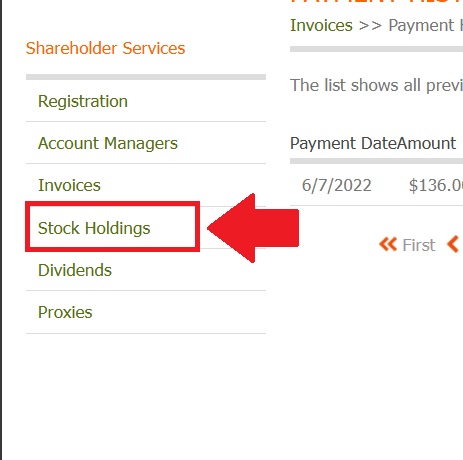
Fig. 8 Stock Holdings location in the navigation menu#
Action Complete
You have successfully navigated to the Stock Holdings section.
Stock Holdings Dashboard#
The main Stock Holdings page displays a comprehensive overview of your investment portfolio.
Step 2: Review Holdings Overview#
Upon entering the Stock Holdings section, you’ll see your complete holdings dashboard.
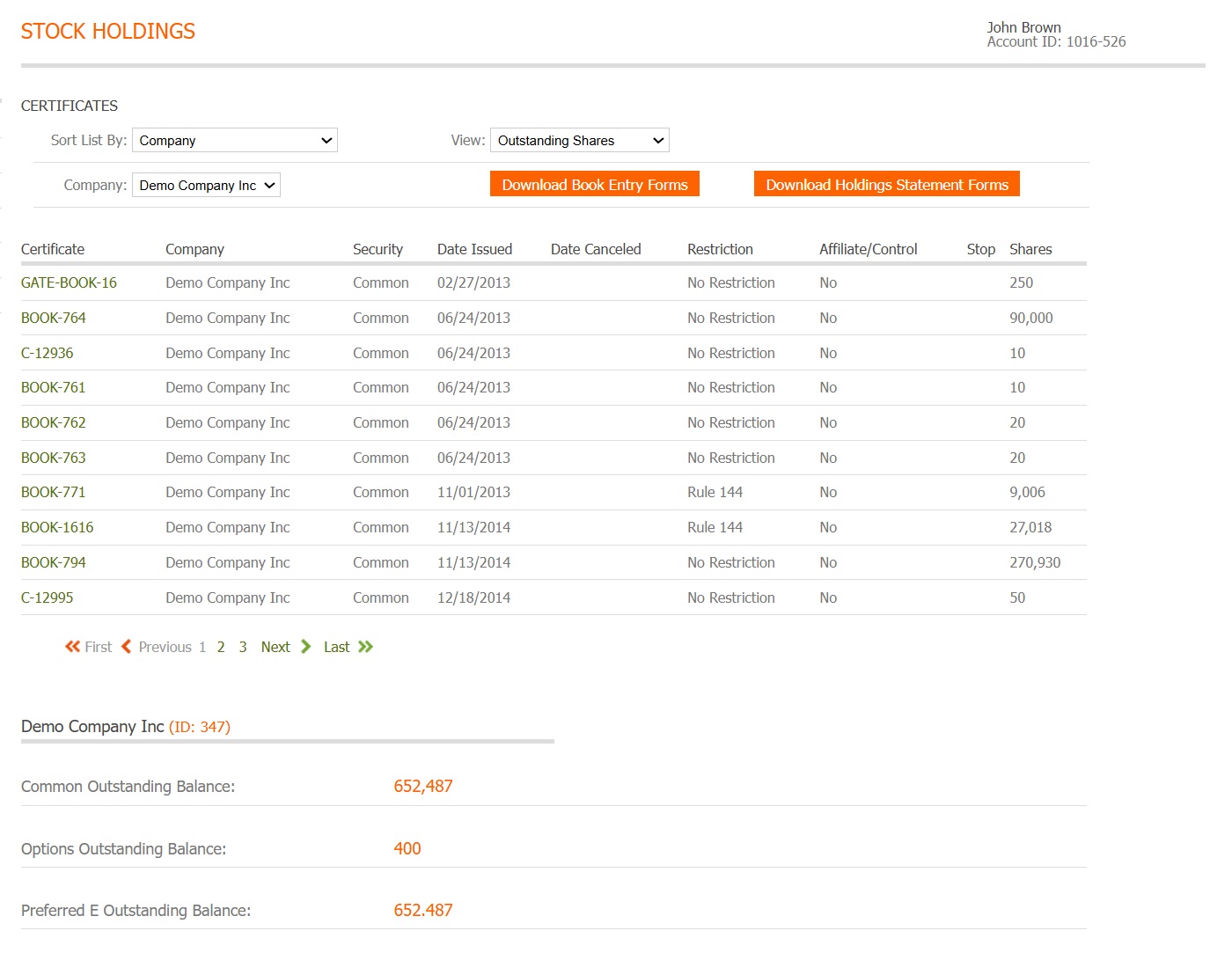
Fig. 9 Stock Holdings main dashboard#
Note
The dashboard displays all your holdings across different companies and security types. Each holding shows key information including certificate numbers, share quantities, and current status.
Step 3: Review Column Information#
The holdings table includes essential information organized in columns for easy reference.
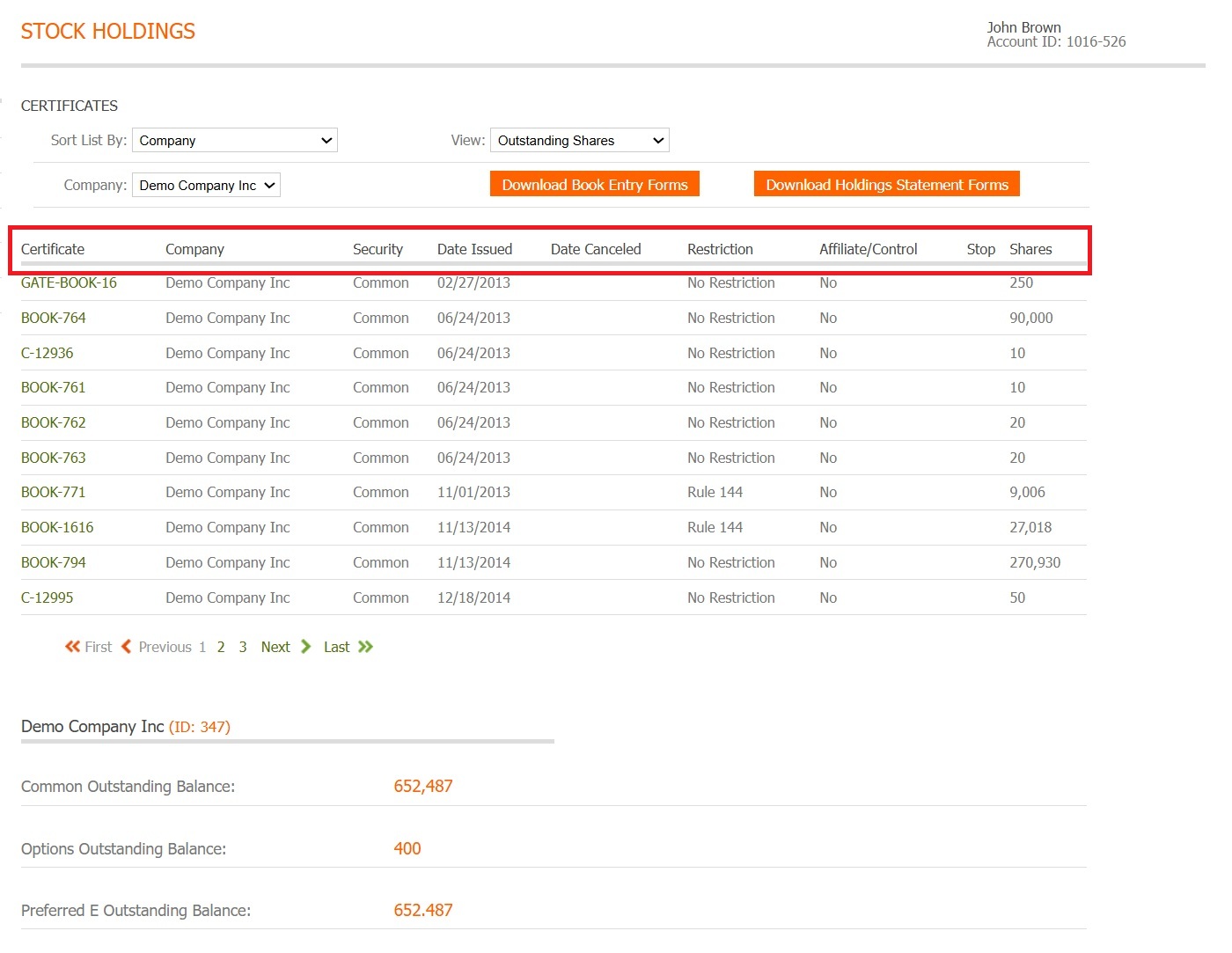
Fig. 10 Column headers showing available information categories#
Table Columns#
The holdings table includes the following key information:
Certificate [Number or Book Entry ID] - Unique identifier for each holding
Company [Name] - Issuing company
Security [Type] - Type of security (common stock, preferred, warrants, etc.)
Date Issued - Date when the certificate was originally issued
Date Canceled - Date when the certificate was canceled or transferred
Restriction - Any trading restrictions or legends on the shares
Affiliate/Control - Indicates if holder is an affiliate or control person
Stop - Transfer stop indicators preventing share movement
Shares - Number of shares
Filtering and Sorting Options#
The Stock Holdings section provides powerful filtering tools to help you navigate large portfolios.
Step 4: Select Company Filter#
Use the company dropdown to filter holdings by specific companies in your portfolio.
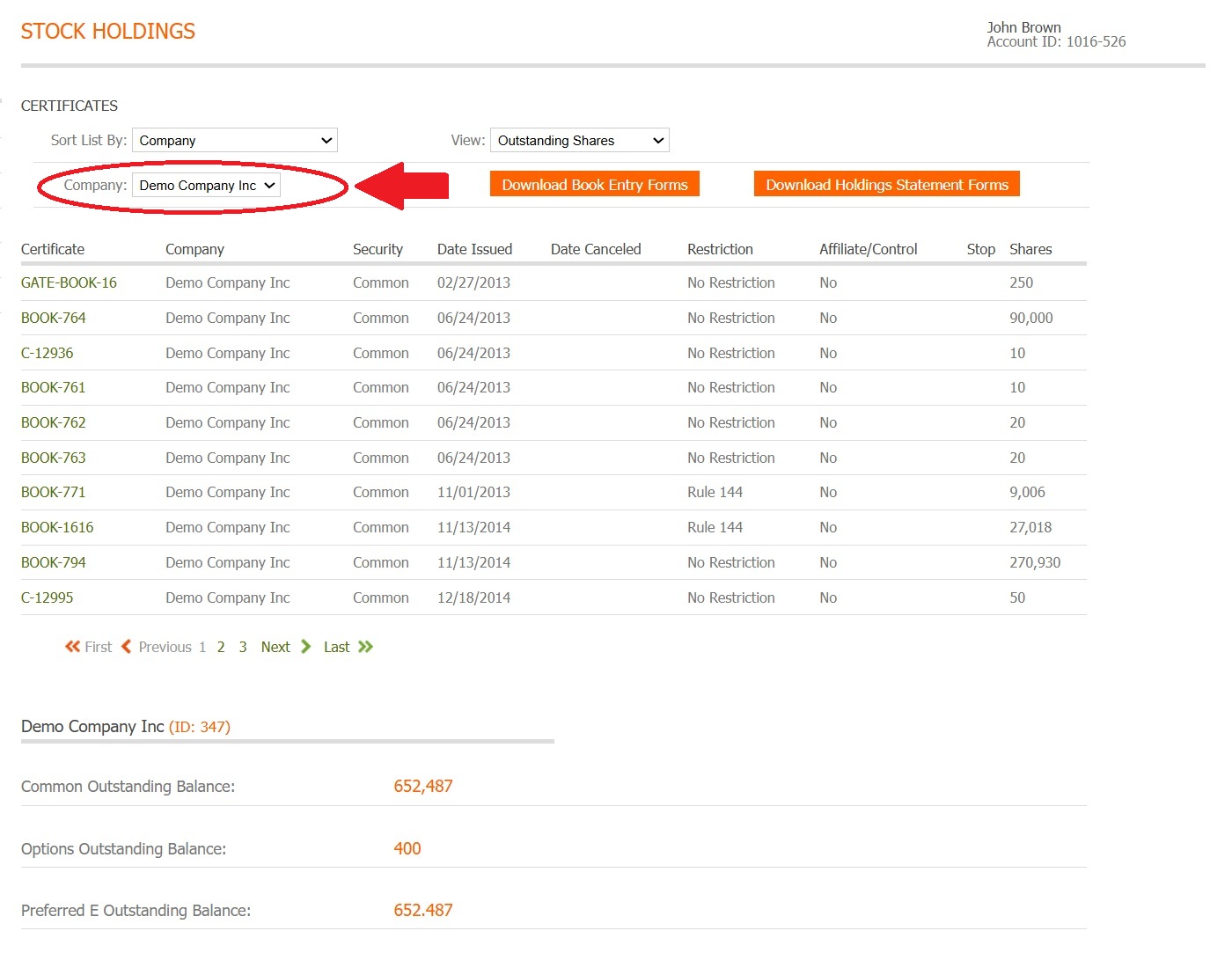
Fig. 11 Company selection dropdown menu#
Step 5: Sort Holdings Display#
Use the Sort List By: dropdown to organize your holdings by various criteria.
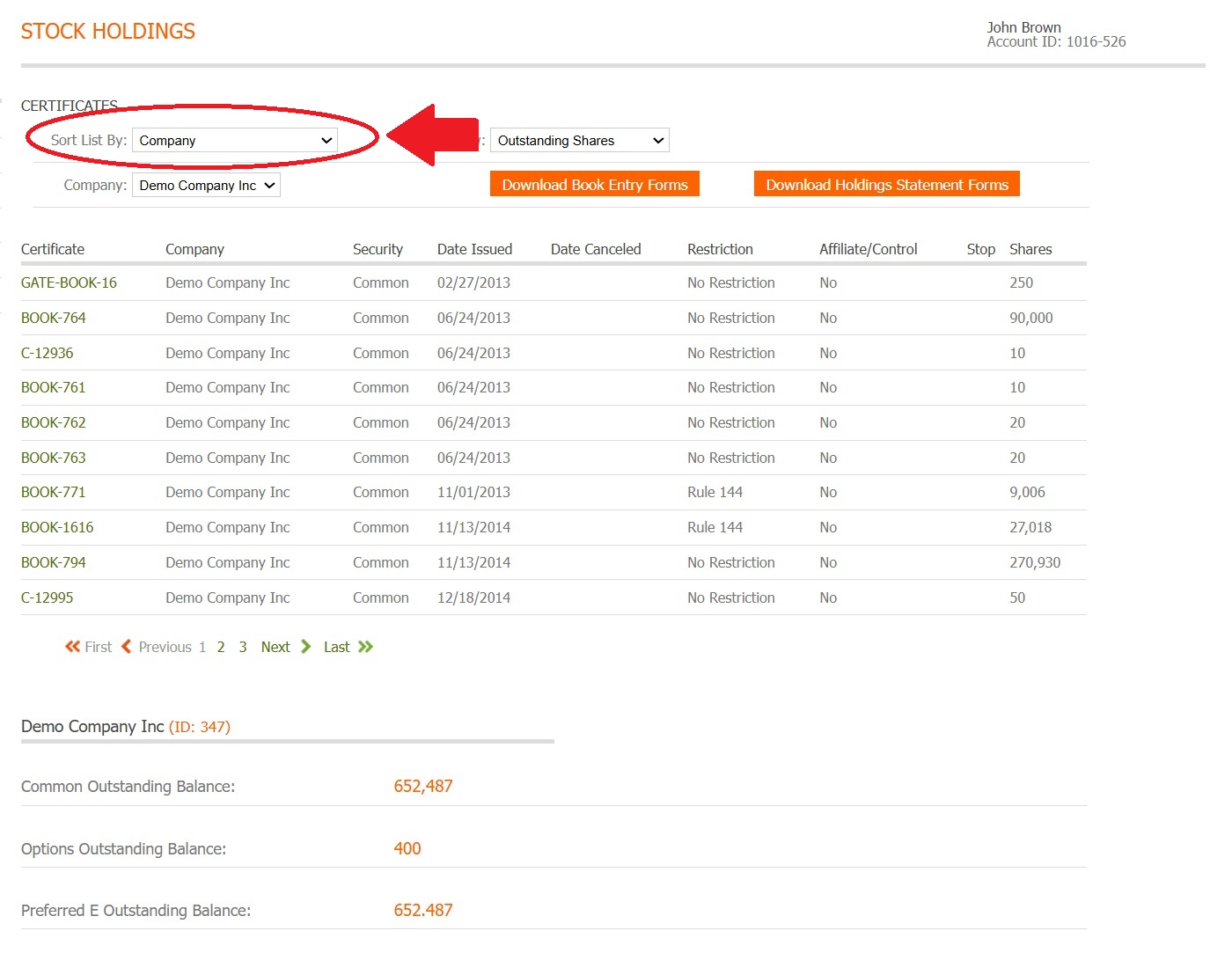
Fig. 12 Sort options dropdown menu#
Step 6: Filter by Security Type#
Further refine your view by filtering holdings based on security types.
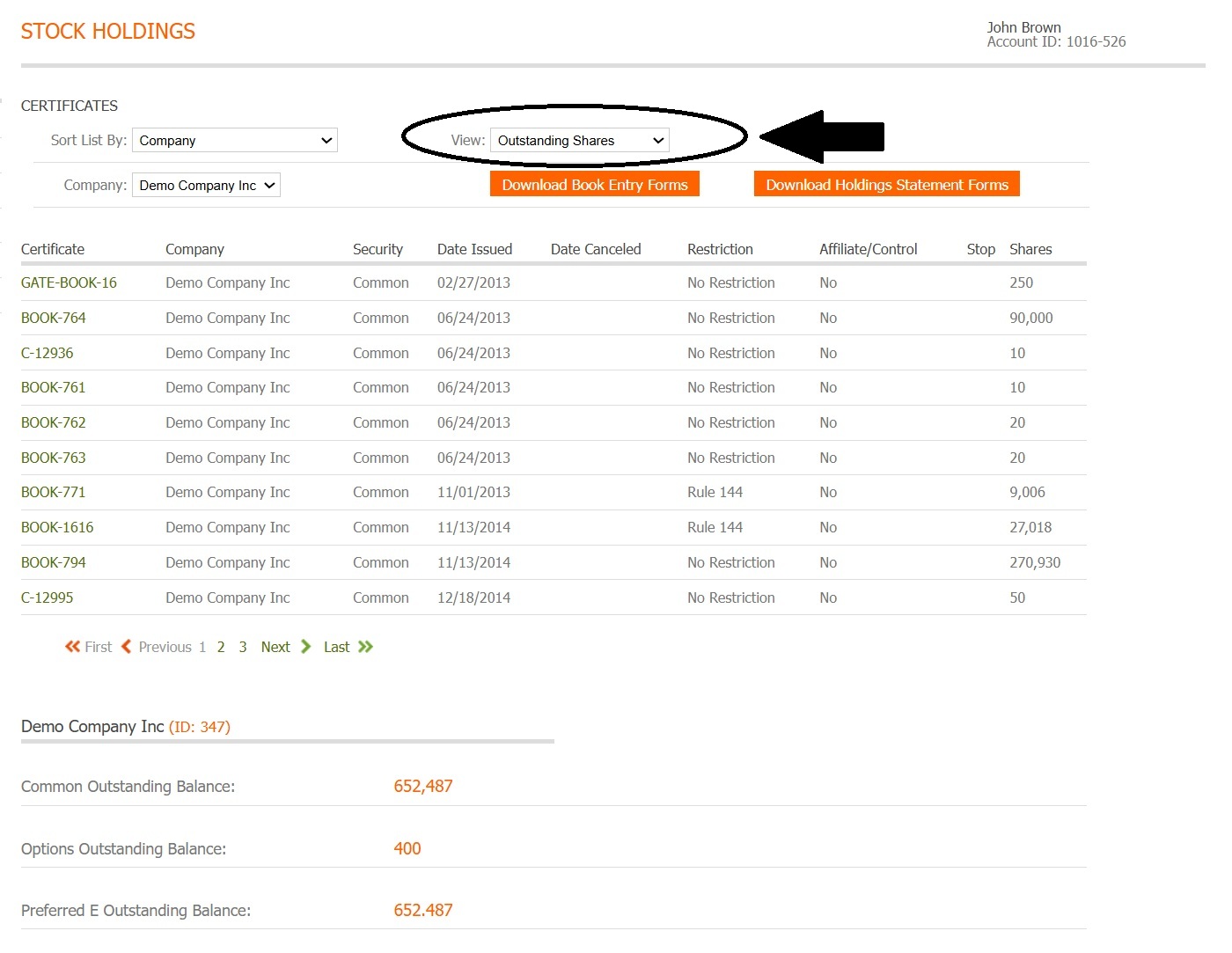
Fig. 13 Security type filter dropdown#
Note
Common security types include:
Common Stock
Preferred Stock
Restricted Stock
Options and Warrants
Available Actions#
Note
The current system displays stock holdings information in the main table view.
From the Stock Holdings section, you can:
View all your stock holdings across different companies
Filter holdings by company or security type
Sort holdings by various criteria
Review certificate numbers, share quantities, and registration details
Next Steps#
Explore the following section to learn more about viewing your stock holdings.